Test Article

CACWT Learner
CACWT Frequently Asked Questions (FAQ)

How to Log On
-
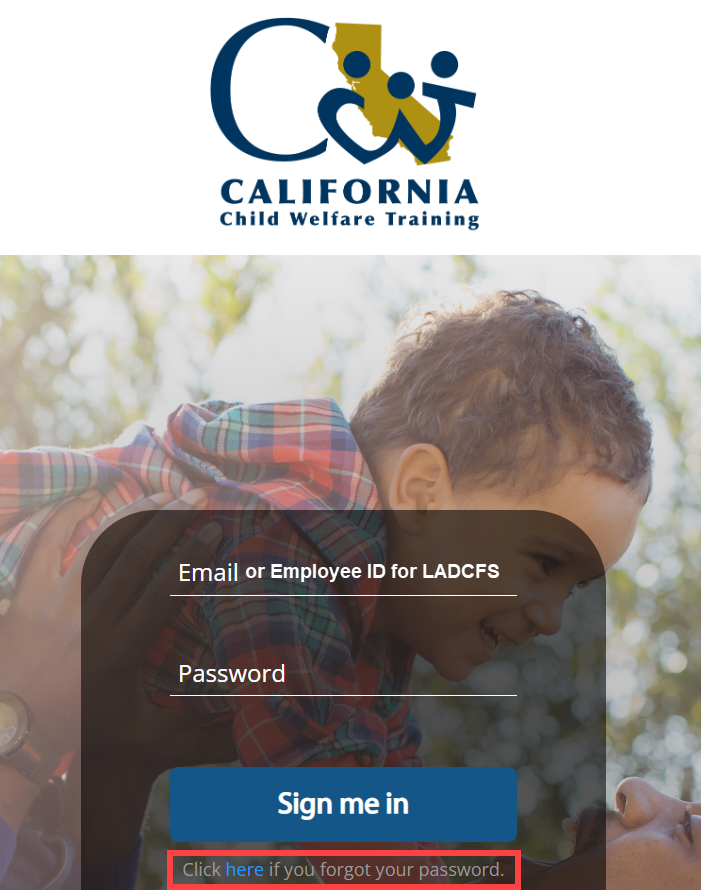
Accessing the CACWT (cacwt.dss.ca.gov) Website
-
Your Credentials:
-
Username: your county issued email address
-
If you are employed by LA County (LADCFS), your username is your employee ID (ex: e1233456)
-
If you are not a county employee and do not remember which email address you used, please use the Need Assistance? Button on the login screen
-
Password: If this is your first time logging in, click the reset password link
-
You will get an email from CACWT@geniussis.com with a temporary password
How to Submit a CACWT Support Ticket
-
Navigate to the CACWT Help Center (tawk.to/cacwtsupport)
-
Click Message Me
-
A form will appear, give as much detail as possible here (including the support area, the course name and your county)
-
Live chat agents are not always available, if you do not receive a reply back, you can leave the page
-
Your chat is saved and will be followed up with via email as soon as a Support Agent is available.
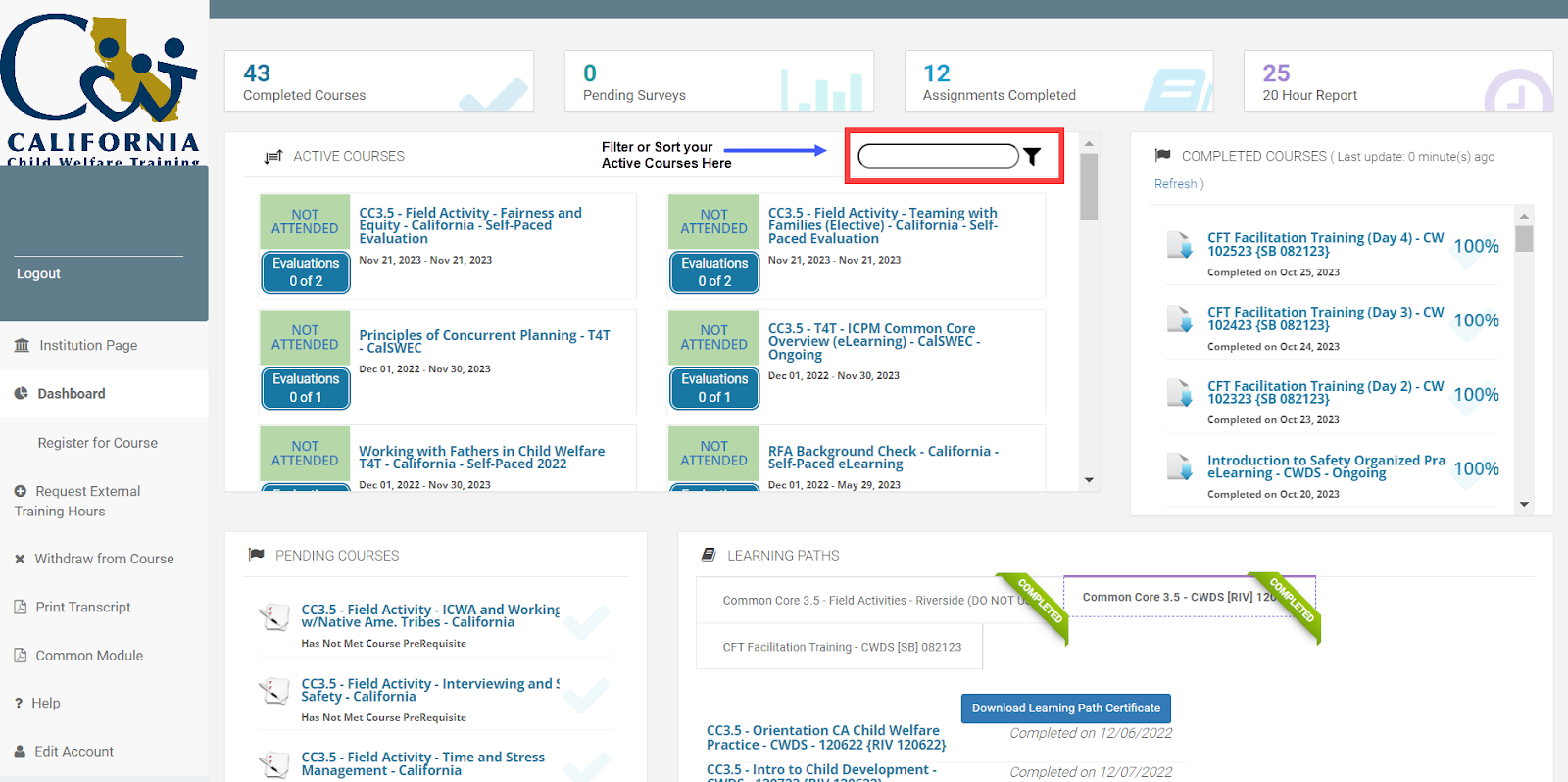
CACWT Dashboard Overview
-
Active Courses Section
-
This section shows all trainings that have not been Completed. They either have not been Attended yet or there are Evaluations Pending.
-
The green box will indicate the status
-
The Blue Evaluations Box next to every class will show any Required Evaluations that will need to be completed.
-
If you click on the box, you will see if the evaluations are available for you to complete. If they are not, they will be available once you attend the class.
-
Clicking on the Course Name will take you to the Course Content Page in CACWT, where you can access Course Materials.
-
Complete Courses Section
-
This section shows all trainings that you have Completed (attended and completed all required evaluations).
-
Clicking on the name of the course will give you the option to Print your CACWT Completion Certificate
-
Pending Courses Section
-
This section shows all trainings that you are enrolled in but have not yet completed the Prerequisites.
-
If a Training has required prerequisites, they must be completed prior to the pending training date for you to end up on the roster.
-
Completion means Attended/ or Finished eLearning and Completed any required evaluations
-
Once you complete all required prerequisites, the course will move from this section to the Active Courses Section.
-
Learning Paths Section
-
This section shows any Learning Paths you are on. Learning Paths are used for those registered in a series.
Evaluations
-
Evaluations are required to be completed for every training in CACWT in order to receive credit
-
At a minimum, trainings that occur for Southern Counties will have two evaluations
-
The CWDS Feedback Assessment (link found on the Course Content Page)
-
The Statewide Satisfaction Survey or the General Course Acknowledgement (link found on CACWT Dashboard)
-
If neither of these surveys show, please reach out to the CACWT Help Center
-
Evaluation not showing as completed
-
This may take some time for Qualtrics to communicate with CACWT that the evaluation was completed
-
Submit a ticket to the CACWT Help Center if you are still not receiving a completed status within 24 hours of completing your evaluation
Cannot Locate Class in CACWT
-
If a training is not appearing in your Active Courses section and you are meant to be attending the training, please reach out to your County Staff Development Team.
Make Ups
-
Make ups are scheduled and managed by the county admins/ staff development. Please reach out to your county’s staff development to coordinate any makeups.
No Credits / Course Not on CACWT Transcript
-
Ensure that your course is showing under the Completed Courses area on your CACWT dashboard.
-
If the course is still under Active Courses, then you may need to complete the required Statewide Evaluations
-
Submit a ticket to the CACWT Help Center if you have completed all required evaluations and are still having issues with your CACWT Transcript.
Continuing Education Credits
-
If the training you attended was eligible for continuing education credits, you can access your certificate via the Academy’s LMS.
-
For any assistance, please submit a ticket to the Academy Help Center (apexsupport.sdsuacademy.org)
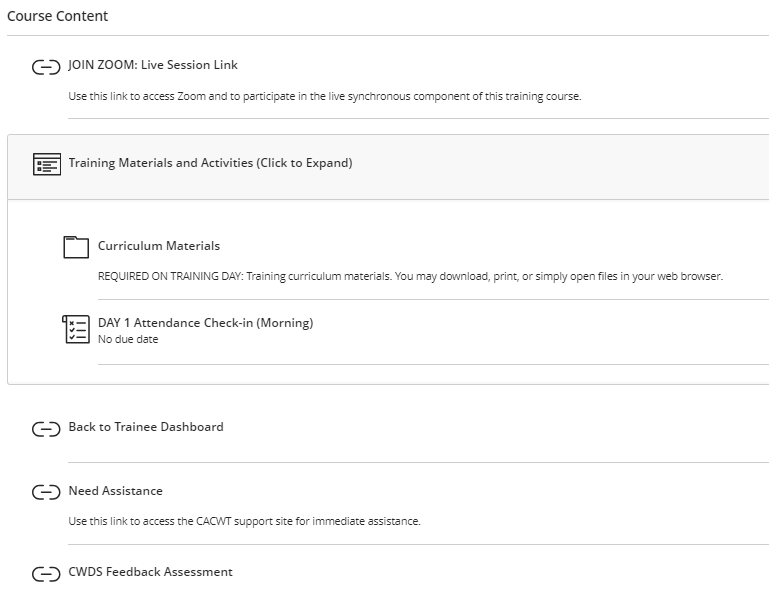
CACWT Course Content Page
-
The Course Content Page in CACWT will have the Zoom Link, Materials, CWDS Evaluation Link, and Attendance Check Ins
-
Some items are made available at certain times during the day. If something is not appearing and it should be, refresh your web browser
Accessing Zoom Link For Virtual Trainings
-
Zoom links for Virtual trainings are available via CACWT once enrolled
-
Log in to CACWT (cacwt.dss.ca.gov)
-
Locate the Active Course Section on your Dashboard
-
Find your training for the day in the section
-
Click on the title of the training
-
You will be directed to the Course Content page in CACWT
-
The Zoom Link will be listed at the top of the page
-
If you are not enrolled into a class on CACWT, you will not be able to access the Zoom link
Completing Attendance
-
Log in to CACWT (cacwt.dss.ca.gov)
-
Locate the Active Course Section on your Dashboard
-
Find your training for the day in the section
-
Click on the title of the training
-
You will be directed to the Course Content page in CACWT
-
On the Course Content Page, locate the section titled “Training Materials and Activities”
-
Click on the heading and the section should expand
-
Attendance Check-Ins will be made visible and hidden depending on the time of day
-
If Attendance is open and you do not see it, refresh the page
-
Click on the Attendance Check In
-
A panel will pop up on the right side of your screen, at the bottom click the Black Button that says Start Attempt.
-
Answer the Attendance Check In Question
-
Click Submit in the bottom right corner and again on the Submission Confirmation pop up
-
Once you get the “Your submission was successful!” pop up, you have submitted your attendance properly
-
There is no need to Download the submission confirmation. You can close this page.
Accessing Materials During a Training
-
Log in to CACWT (cacwt.dss.ca.gov)
-
Locate the Active Course Section on your Dashboard
-
Find your training for the day in the section
-
Click on the title of the training
-
You will be directed to the Course Content page in CACWT
-
On the Course Content Page, locate the section titled “Training Materials and Activities”
-
Click on the heading and the section should expand
-
There will be a folder for materials, either with a link or with the files in CACWT
Accessing Materials Outside of a Training
-
Log in to CACWT (cacwt.dss.ca.gov)
-
On the CACWT Dashboard, locate the left panel and Click on Institution Page
-
There will be a section titled Welcome Trainees
-
Under that section click on the Curriculum Content Library
-
The Curriculum Content Library houses all state-standardized material
-
If you are looking for materials from a non-state-standardized training, please submit a ticket to the Academy Help Center (apexsupport.sdsuacademy.org)
Related Articles
TT Test
Overview This section allows you to configure the overall operation to handle scanning of connections under HTTPS (HTTP over SSL). SSL (Secure Sockets Layer), is the standard security technology for encrypting a connection between a web server and a ...Test KB
Hi There This is a info Next up we have the wordingsHandling Passenger Complaints Regarding Bus Delays
Introduction: At SLRTransports, we understand that punctuality is crucial for our passengers. While we strive to maintain our schedules, occasional delays may occur due to unforeseen circumstances. This article outlines how to address passenger ...SLRTransports Refund Policy for Delayed or Missed Trips
Introduction At SLRTransports, we strive to provide reliable and timely bus services. However, we understand that unexpected delays can disrupt travel plans, sometimes leading to missed commitments. In such cases, passengers may be eligible for a ...